7 Unblocked Browser Games for School in 2026
Quick Summary
Unblocked browser games are free HTML5 games that run directly in a web browser with no download or install, and that school network filters have not blocked. Check each site on your own device, since filters and domains change often.
- Most unblocked browser games run in the browser with no download or install.
- Close any site that asks you to install an extension, player, or file.
- Older Chromebooks handle 2D puzzle and arcade games better than 3D titles.
- Keyboard controls tend to work more reliably than mouse or touch-only games on school devices.
- Keep two or three working games bookmarked and re-test them weekly.
Table of Contents
- What Unblocked Browser Games Are and How They Work
- Best Unblocked Websites for School Chromebook
- Popular Unblocked Browser Games by Genre
- Unblocked Browser Games for School Offline and Low-Bandwidth Options
- Free Unblocked Browser Games for School: What to Expect
- Staying Safe: Privacy, Deceptive Sites, and School Policy
- Trying BeatMe Games for Your Next Study Break
- Frequently Asked Questions
7 Unblocked Browser Games for School in 2026
Last Updated: November 7, 2026
What Unblocked Browser Games Are and How They Work
Unblocked browser games for school are games that run directly in a web browser without a download or install, and that school network filters have not blocked.
A browser game is usually built with HTML5, which lets the game run inside a standard web page. That is why it works on a school Chromebook without administrator rights.
Unblocked games are simply browser games that get past web filtering. Schools often block gaming sites by domain name, so the mirror or alternate address that hosts the same game may remain accessible.
Two things matter most when you choose a game for a school device:
- Compatibility: Most HTML5 games run on any modern browser, but heavy 3D titles may lag on older Chromebooks.
- Controls: Keyboard-driven games tend to work more reliably on school devices than games that depend on a mouse, gamepad, or touchscreen.
Keep in mind that playing on a school network can conflict with school policy. Check your school's acceptable use rules before you play during class time.
Best Unblocked Websites for School Chromebook
Not every site that hosts browser games is a safe or stable choice on a school Chromebook. The strongest options share four traits: they load fast on low-powered hardware, they host games directly instead of linking out to download pages, they keep pop-ups and redirects to a minimum, and they do not require an account, extension, or install. Availability varies by school network, so treat any list, including this one, as a starting point to test on your own device.
What to check before you play
Run this short checklist the first time you open a site on a school Chromebook:
- Load behavior: The page should render in a few seconds on a managed Chromebook. If the tab spins for more than about ten seconds or the game canvas stays blank, move on.
- No install prompts: A legitimate browser game starts inside the page. If you see a prompt to install an extension, update a player, or download a file, close the tab.
- Redirect count: One redirect to a game page is normal. Repeated redirects, new tabs opening on their own, or a page that changes address after you click play are warning signs.
- Permission requests: A game should not ask for your location, camera, microphone, notifications, or school login. Decline anything that does.
- Ad behavior: Expect some ads on free sites, but ads should not cover the play area, auto-play sound, or open new windows.
Watch out: a site that imitates a popular game's name and pushes a "browser update" or "player required" download is a common deceptive pattern, close it and do not install anything.
Site categories worth knowing
Rather than relying on a single destination, it helps to understand the kinds of sites you will encounter:
- Dedicated HTML5 game portals host many titles in one place and usually run games in an embedded frame. They are convenient but ad-heavy, and individual games can disappear without notice.
- Single-game sites host one title, often with a cleaner page and fewer ads. They are a good fallback when a portal is blocked or slow.
- Publisher and developer pages sometimes offer a browser version of a game directly. These tend to be the most stable and the least ad-cluttered.
- Classroom-friendly collections curated by teachers or libraries focus on puzzle, word, and strategy games with minimal ads and clearer age suitability.
Chromebook compatibility specifics
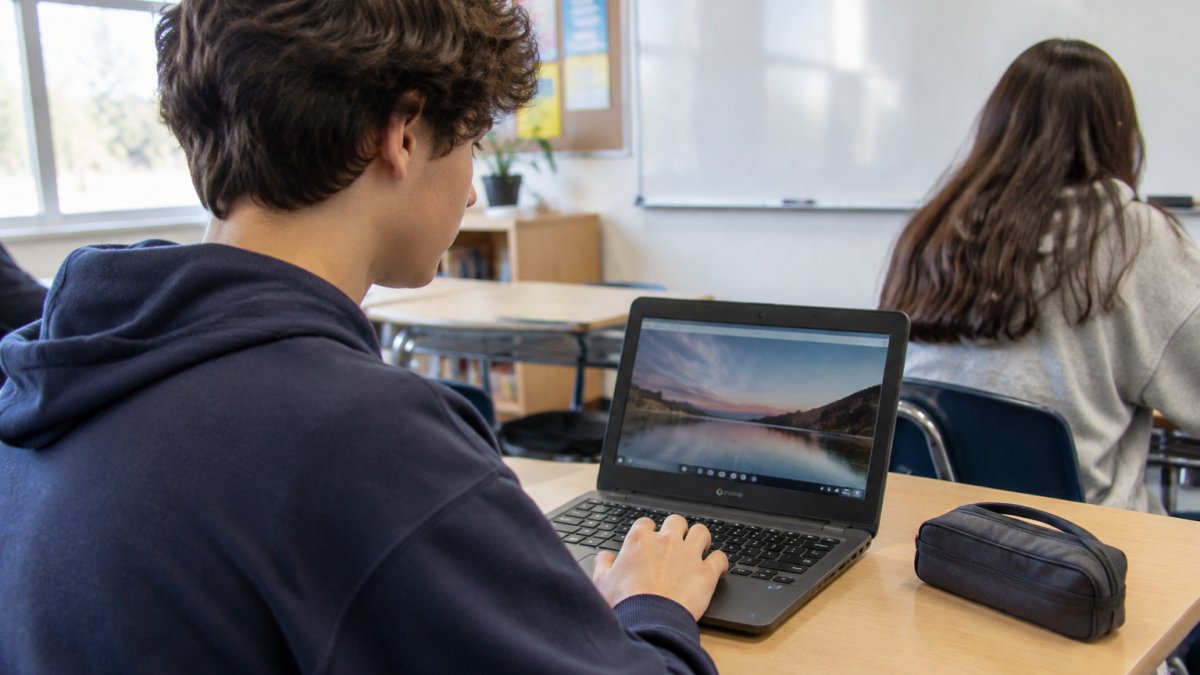
Most HTML5 games run in Chrome on a managed Chromebook, but performance depends on the model. Older education Chromebooks with 4 GB of RAM and low-end processors handle 2D puzzle, word, and arcade games well; they struggle with 3D racing titles, physics-heavy games, and anything with lots of particle effects. A few practical rules:
- Prefer games that render in a single canvas and avoid WebGL-heavy 3D scenes on older devices.
- Keyboard and trackpad controls are more reliable than gamepad or touch-only controls on a Chromebook.
- Full-screen mode can improve performance slightly by reducing browser chrome, but some managed devices restrict it.
- If a game stutters, lower the resolution or quality setting inside the game before assuming the site is broken.
Testing and update notes
Availability on school networks changes constantly because filters are updated and sites move domains. A sensible approach is to keep two or three working games bookmarked and re-test them each week. When you test, note the date, the device model, the browser version, and whether the game loaded, ran smoothly, and stayed ad-free enough to play. That simple log tells you more than any static list, because it reflects what actually works on your network.
Before you open any game site, confirm that the page loads cleanly and that the game starts without asking you to install anything. If a site redirects you repeatedly or prompts for a download, close it. Those are common signs of deceptive or unsafe sites.
Popular Unblocked Browser Games by Genre
Browser games cover many genres. Choosing by genre helps you find something that fits how much time you have, what kind of focus you want, and whether the game suits your age and ability level. The notes below include rough session length and suitability so you can pick quickly between classes.
Racing and Sports Games
Racing and sports titles are popular because they deliver fast rounds that fit a short break. Many use simple arrow-key or WASD controls, which keeps the learning curve low. Because they often involve constant on-screen motion, they can strain older hardware, so test one before you rely on it for a full session. Typical rounds run one to three minutes, which makes them good for a quick reset but easy to overrun if you keep restarting.
- Keyboard-friendly racing games reward short, repeatable laps and work well on a trackpad-free setup.
- Sports arcade games such as simple soccer, basketball, and penalty-shot titles use one or two keys and suit short breaks.
- Accessibility note: fast-motion racing can be uncomfortable for players sensitive to motion; look for a reduced-motion or camera-shake setting where offered.
Puzzle and Arcade Games
Puzzle and arcade games are the most common choice for quick breaks.
Strategy and Board-Style Games
Strategy titles such as checkers, chess variants, and turn-based puzzle games suit players who want a calmer session. They typically run ten to thirty minutes, work well with keyboard-only or trackpad input, and are easy to pause. Age suitability is broad, but younger players may need simpler rule sets.
Arcade and Reflex Games
Classic arcade-style games, snake, breakout-style brick breakers, and endless runners, are easy to learn and hard to put down. Rounds are short, often under two minutes, and the skill focus is timing and hand-eye coordination. They are light on hardware but can be the easiest genre to lose track of time in, so set a limit before you start.
How to choose by time and ability
- Under five minutes: arcade, racing, and quick puzzle rounds.
- Five to fifteen minutes: 2048, word games, and most sports arcade titles.
- Fifteen minutes or more: chess variants, Sudoku, and longer strategy games.
- Keyboard-only play: prefer puzzle, word, and turn-based strategy games; avoid games that require precise mouse aiming.
- Reduced motion or low vision: choose high-contrast puzzle and word games and avoid fast-scrolling titles.
Watch out: a game that looks simple on the thumbnail can still hide aggressive ads or a redirect on the play page, check the page behavior before you commit a break to it.
Unblocked Browser Games for School Offline and Low-Bandwidth Options
Not every school network is fast or stable. Many browser games need a live connection to load their assets, which can make them slow or unplayable on a weak network.
If you expect connection problems, look for games that cache their files after the first load, or games that are small enough to run from a single page. Simple puzzle titles are usually the most forgiving. For more detail on games that keep working when the connection drops, read our guide on how to play browser games that work offline.
Free Unblocked Browser Games for School: What to Expect
Most unblocked browser games are free to play. That said, free sites sometimes rely on ads, and some ads lead to pages that ask for personal information or push software downloads. Treat any prompt for a download, a login, or payment details as a warning sign (Defending democracy | Guidance for high-risk individuals on protecting your accounts and...).
Expect a few trade-offs with free games. Ads can interrupt play, load times vary, and some titles get removed without notice. Keeping two or three reliable games on hand is a better strategy than depending on a single site.
The table below summarises what to expect from free unblocked games and the warning signs to watch for.
| Factor | What to expect | Note |
|---|---|---|
| Cost | Most unblocked games are free | Free sites often rely on ads |
| Ads | Can interrupt play | Ads can lead to download or login prompts |
| Load times | Vary by network | Weak connections may make games unplayable |
| Availability | Titles can be removed without notice | Keep two or three reliable games on hand |
| Warning sign | Prompts for downloads, logins, or payment | Treat as unsafe and leave the site |
Staying Safe: Privacy, Deceptive Sites, and School Policy
Unblocked game sites can carry real risks. Deceptive sites sometimes imitate popular game names, display fake "update" warnings, or try to trick you into downloading malware. Never enter your school login or personal details on a game site, and never install anything a game asks for.
School policy matters just as much as site safety. Many schools restrict gaming during class time and treat bypassing filters as a rule violation.
Accessibility matters too. If you use a screen reader, a keyboard-only setup, or need larger text, choose games with clear visual contrast and keyboard controls, and test them before you rely on them.
Trying BeatMe Games for Your Next Study Break
If you want something quick and social, BeatMe Games is worth a look. Its games are built for two players who challenge each other through a shared link sent in any chat.
Every BeatMe Games title is free to play with no in-game purchases. Server-side move verification helps keep matches fair, so neither player can manipulate the result. If you want to settle a rivalry with a friend between classes, challenge a friend with a game from BeatMe Games.
Whichever game you choose, pick one that runs well on your device, respects your school's rules, and fits the amount of time you have before the next class.
Frequently Asked Questions
Can you play browser games on a school Chromebook?
In most cases, yes. Browser games run inside Chrome without installing software, which is why they often work on school-managed Chromebooks where downloads are locked. Whether a specific game loads depends on your school's web filter, so a game that works for one student may be blocked for another. Check that the site uses HTML5 rather than older plugins, since Chromebooks do not support Flash, and avoid any game that asks you to download an installer or extension.
Are unblocked browser games safe to play?
Most well-known browser game sites are safe to visit, but unblocked sites are sometimes mirror copies run by unknown operators. Watch for pop-up ads, redirects to unrelated pages, requests to download files, and requests for personal information or logins. Stick to sites that do not ask for an account, avoid clicking download buttons inside games, and close any tab that opens a new window you did not request. Always follow your school's acceptable use policy.
Can you play browser games at school without downloading anything?
Yes. Games built with HTML5 and WebGL run entirely in the browser tab, so nothing needs to be installed. Look for keywords like browser-based or no download on the game page. Keep in mind that some games load large files and may lag on school networks with low bandwidth, so smaller casual and puzzle titles are usually the most reliable choice during a short break.
